
Tasks and subtasks
Create a task
Section titled “Create a task”Click + at the bottom of a lane to create a task with just a title. Add the details later.
You can also use + in the lane header. Enter a title and press Enter to create it, then keep typing to add the next task. Press Esc to close the input.
Press Shift+Enter for a line break to enter several lines at once. When you press Enter, a confirmation lets you create one task per line or combine them into one task. Combined lines are joined with a space.
Click a card’s title to open its details.
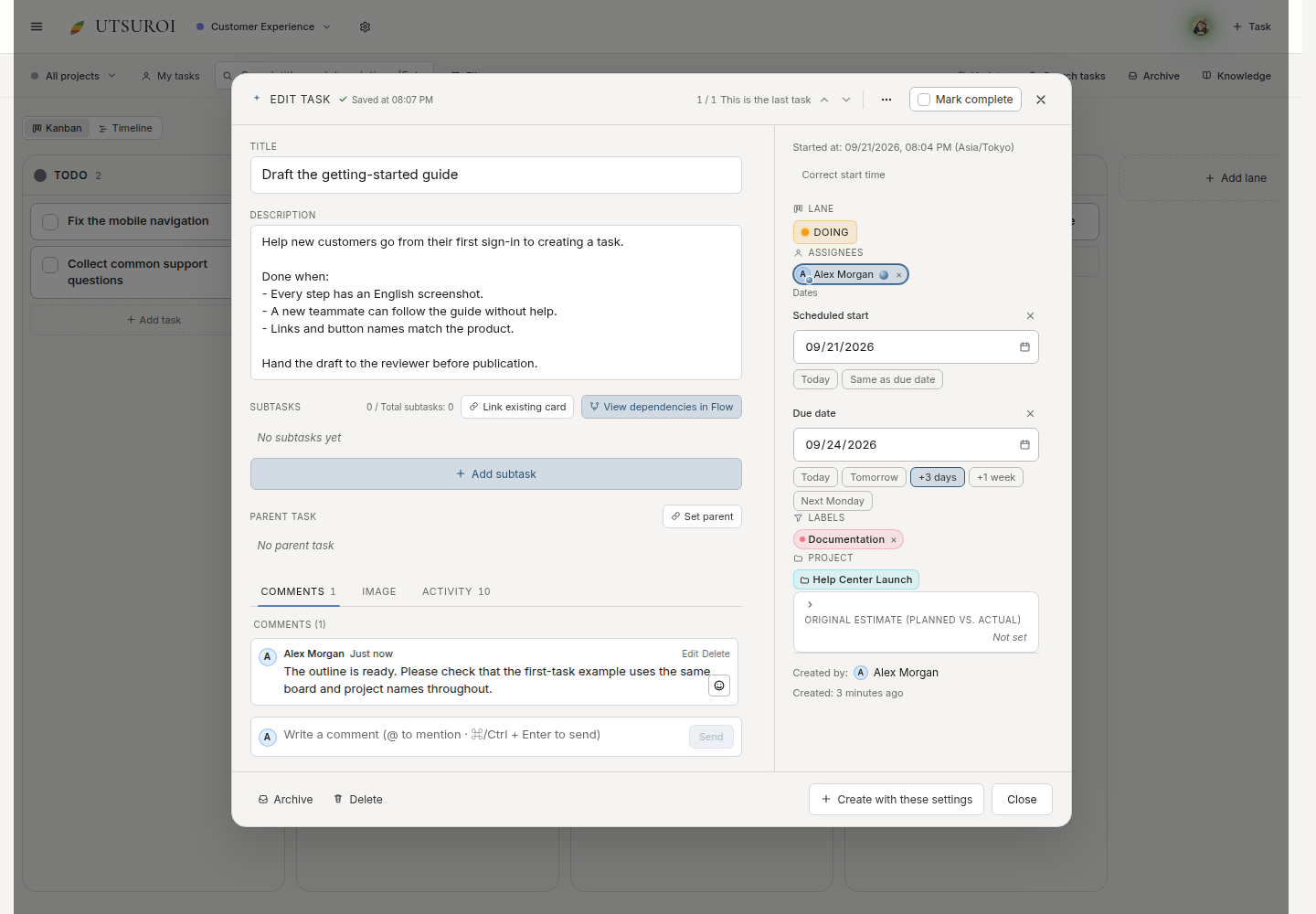
Task fields
Section titled “Task fields”| Field | Purpose |
|---|---|
| Title | Name the action or outcome |
| Description | Explain the request for whoever reads it later |
| Due date | A calendar date, rather than “sometime this week” |
| Scheduled start date | When you plan to begin |
| Assignees | One or more people involved |
| Ball holder | The one person whose turn it is to act |
| Size | Estimate points |
| Project | Group work by initiative |
| Labels | Classify work across initiatives |
Due dates and scheduled start dates are calendar dates, without a time of day. Comments and history entries have timestamps that include the time.
Lifecycle
Section titled “Lifecycle”Tasks have explicit actions for starting, completing, and reopening work:
- Start: Begin working.
- Complete: Mark the work finished.
- Reopen: Bring completed work back into progress.
These actions move the task between lanes and record its history. You can also drag cards between lanes; explicit lifecycle actions make the history easier to follow.
Subtasks
Section titled “Subtasks”Tasks can have parent–child relationships.
Cards have a flat order within each lane. Parent tasks and subtasks can be arranged freely together. A parent and child can be in different lanes: a parent waiting for review while a child is in progress is a valid arrangement.
Split out a step as a subtask
Section titled “Split out a step as a subtask”In task details, click Add subtask, enter a title, and press Enter. In this example, Capture the first-task walkthrough is a separate step within writing the guide.
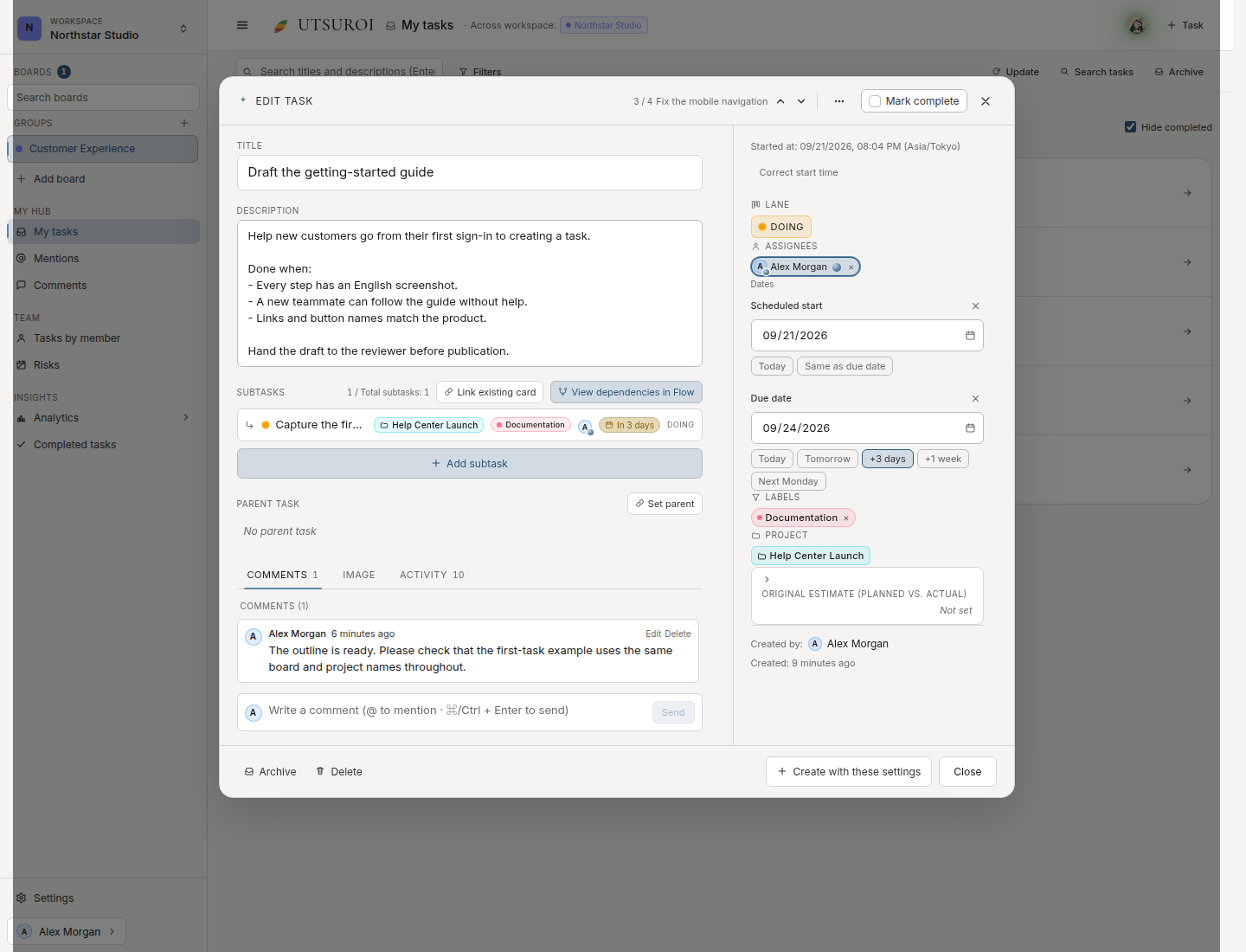
Use the parent for the overall deliverable and children for concrete steps. This helps track work that is difficult to follow as a checklist in the description alone.
Bulk actions
Section titled “Bulk actions”Select multiple cards to:
- Move them to a lane
- Set their project
- Add or remove labels
- Apply scheduled start dates and due dates together
- Archive them, with an option to include descendant subtasks
Comments and history
Section titled “Comments and history”Tasks support comments and reactions. Changes are recorded automatically.
Editing a description leaves assignees, labels, comments, and existing history intact. It only adds an entry recording the description change.
Archive and restore
Section titled “Archive and restore”Archive tasks you no longer need. Archiving keeps them available to restore later.
Click Archive at the top of the board to open the archived cards. Click Restore on a card to bring it back. You can choose whether to restore its subtasks too.