
3. Move your first task
With the board in place, run one real piece of work through it.
Create it
Section titled “Create it”The “+” at the bottom of a lane creates a task from a title alone. Keep it light.
The three you must fill in
Section titled “The three you must fill in”Afterwards, fill in these three. A task missing any of them will almost certainly stall.
1. Due date
Section titled “1. Due date”“This week” is not a due date. Put in a date. A task without one is never flagged as overdue and never shows up in analytics.
There is also a separate scheduled start date, for when you plan to pick it up.
2. Assignees
Section titled “2. Assignees”Several people can be assigned. Put in everyone involved.
3. Ball holder
Section titled “3. Ball holder”Exactly one person: whose turn it is right now. Hand it over with the ball icon on an assignee’s avatar.
Keeping these two apart is what makes UTSUROI different. A task with three assignees still has exactly one person blocking it.
More in assignees and the ball holder.
Optional
Section titled “Optional”- Size — estimation points, used for velocity
- Project — group by engagement
- Labels — cross-cutting classification
- Description — the actual request, written for whoever reads it later
Example: write a getting-started guide
Section titled “Example: write a getting-started guide”Using the Help Center Launch project from the previous page, create Draft the getting-started guide.
| Field | Example |
|---|---|
| Description | Explain the steps from first sign-in to creating a task. Done when a new user can follow every step successfully. |
| Scheduled start | The day writing will begin |
| Due date | A specific date when the draft will be ready for review |
| Assignees | The writer and the reviewer |
| Ball holder | The writer, to begin with |
| Project | Help Center Launch |
| Label | Documentation |
Describe both what to produce and what counts as done. Naming the reader and the acceptance check gives the reviewer something concrete to assess.
If you are trying this alone, assign yourself and keep the ball yourself. Try handing it to someone else after inviting your team.
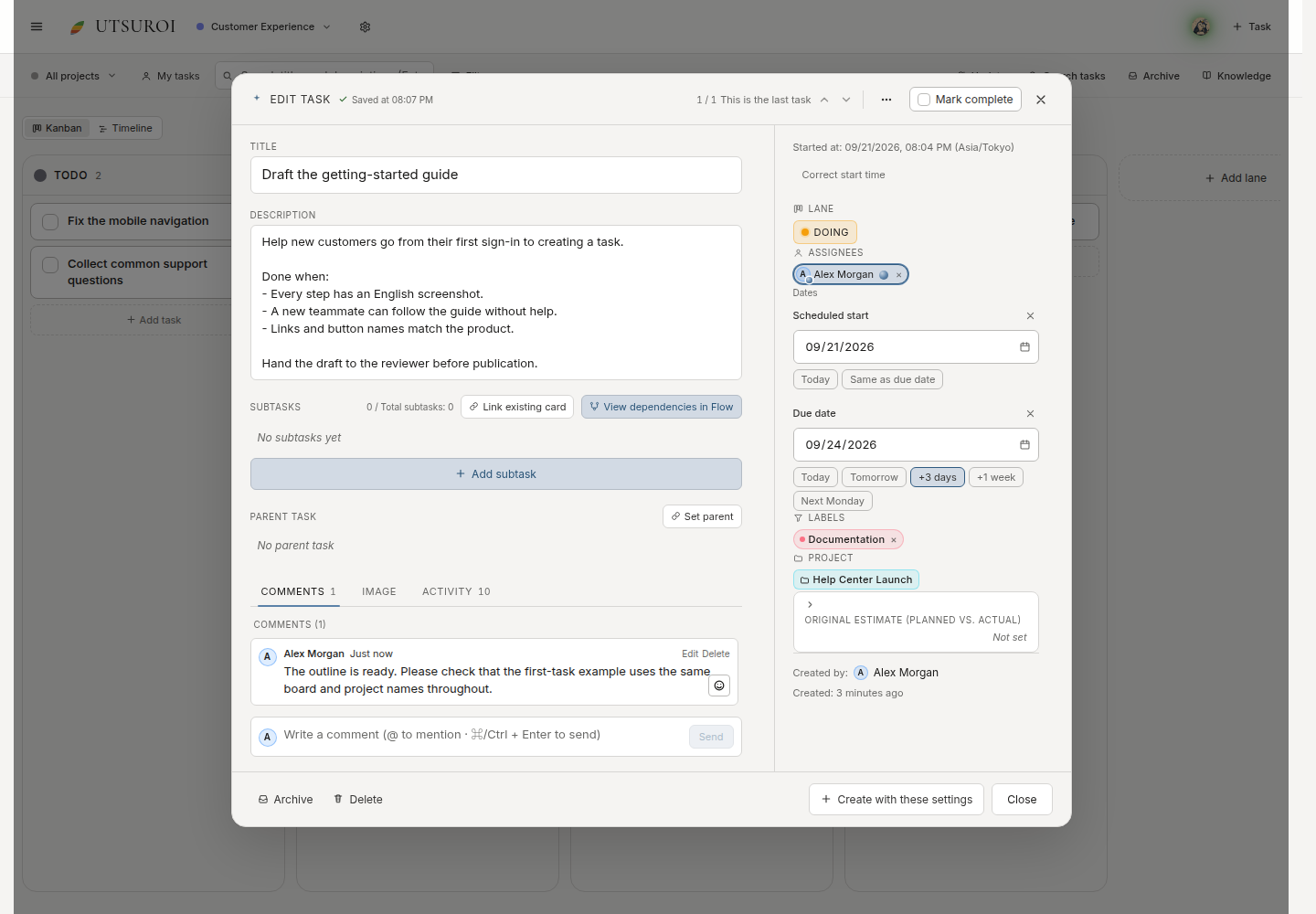
The request and comments are on the left; assignees and dates are on the right. Alex Morgan is both assigned and holding the ball in this example. Replace the sample dates with your own schedule.
Click the card title to open its details. After entering a description or date, move to another field and check the saved indicator at the top before closing.
Move it
Section titled “Move it”Tasks have start, complete and reopen actions. You can drag cards between lanes, but the explicit lifecycle actions move the lane and record the history in one step.
Subtasks are parent-child connections. Ordering is flat per lane, so a parent and its child can sit in different lanes — which is common and fine.